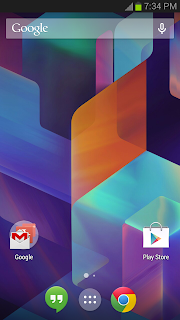
Those who have not owned a Nexus 5 or any other nexus device which have stock Android 4.4 KitKat may miss the new stock features a lot. Even we are not much curious about every stock feature, the Android 4.4 KitKat Launcher and the Google Now's OK Google command feature may be in the 1st and 2nd position in our needed features list.
By following the post you can get both of them in your non nexus device too. The method works with both rooted and non rooted devices. Currently "OK Google" command will work from the Home screen only.I have tested it with Galaxy S3 GT-I9300 and it works very well.

Update:
Tested in more devices .... some of them have force close error... so while selecting launcher don't select always select just once.
2. After Installing both apk ... click Home button and select Launcher in the list.
Note: select Just once don't set always...then you can uninstall simply in case force close appears.
1. In Home Screen go to Google Now settings

2. In Google Now Settings tap on Voice -> Offline speech recognition....it will open Download Languages screen.


3. In Download Languages activity tap on All tab and select English (US) in the list.
4. Now, You will get a pre installed warning tap OK
5. Go back to INSTALLED tab and tap on English (US)
6. Now, it will ask you to download the latest update tap on Download.

7. After finishing the update....go back to Home screen..where you’ll notice “Ok Google” will now be displayed inside the Google Search widget.
That's it..
Note :
If "Ok Google" not showing in the Google search widget tap on the voice icon in the widget then close it.... now try saying OK Google it will work....
By following the post you can get both of them in your non nexus device too. The method works with both rooted and non rooted devices. Currently "OK Google" command will work from the Home screen only.I have tested it with Galaxy S3 GT-I9300 and it works very well.
Update:
Tested in more devices .... some of them have force close error... so while selecting launcher don't select always select just once.
How To Setup Android 4.4 KitKat Launcher ?
1. Download and Install Launcher | Latest Google Now2. After Installing both apk ... click Home button and select Launcher in the list.
Note: select Just once don't set always...then you can uninstall simply in case force close appears.
How To Enable Ok Google Command in Google Now ?
To work this method your phone's default language should be English US to change default language go to Settings -> Language and input -> language1. In Home Screen go to Google Now settings
2. In Google Now Settings tap on Voice -> Offline speech recognition....it will open Download Languages screen.
3. In Download Languages activity tap on All tab and select English (US) in the list.
4. Now, You will get a pre installed warning tap OK
5. Go back to INSTALLED tab and tap on English (US)
6. Now, it will ask you to download the latest update tap on Download.
7. After finishing the update....go back to Home screen..where you’ll notice “Ok Google” will now be displayed inside the Google Search widget.
That's it..
Note :
If "Ok Google" not showing in the Google search widget tap on the voice icon in the widget then close it.... now try saying OK Google it will work....